¶ Getting Started with Hospital Management System
This guide walks you through the Hospital Management System (HMS) built on Odoo 19 Community Edition. It covers each module, the main workflows, and how to use the system day-to-day.
¶ Table of Contents
- Logging In
- Navigation
- Hospital Website
- Patient Registration
- Patient Management
- Appointments
- Consultations (EMR)
- Lab Requests & Results
- Pharmacy & Dispensing
- Billing
- Inpatient & Admissions
- Insurance Policies
- Patient Portal
- Configuration
¶ Logging In
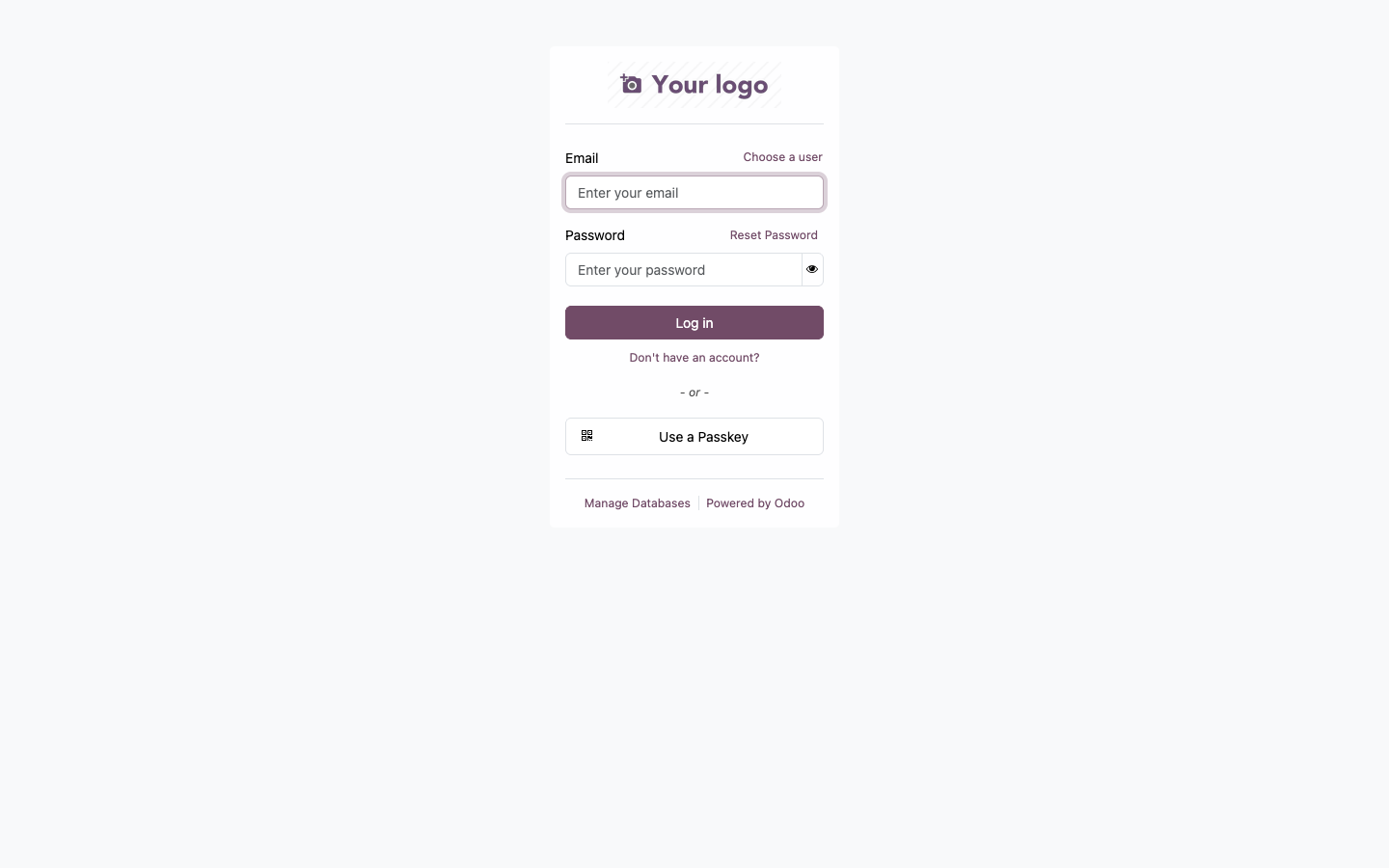
Navigate to your Odoo instance (e.g. http://localhost:8069) and log in with your admin or staff credentials.
¶ Navigation
After logging in, click the grid icon (top-left) to open the app launcher. Select Hospital to enter the HMS.
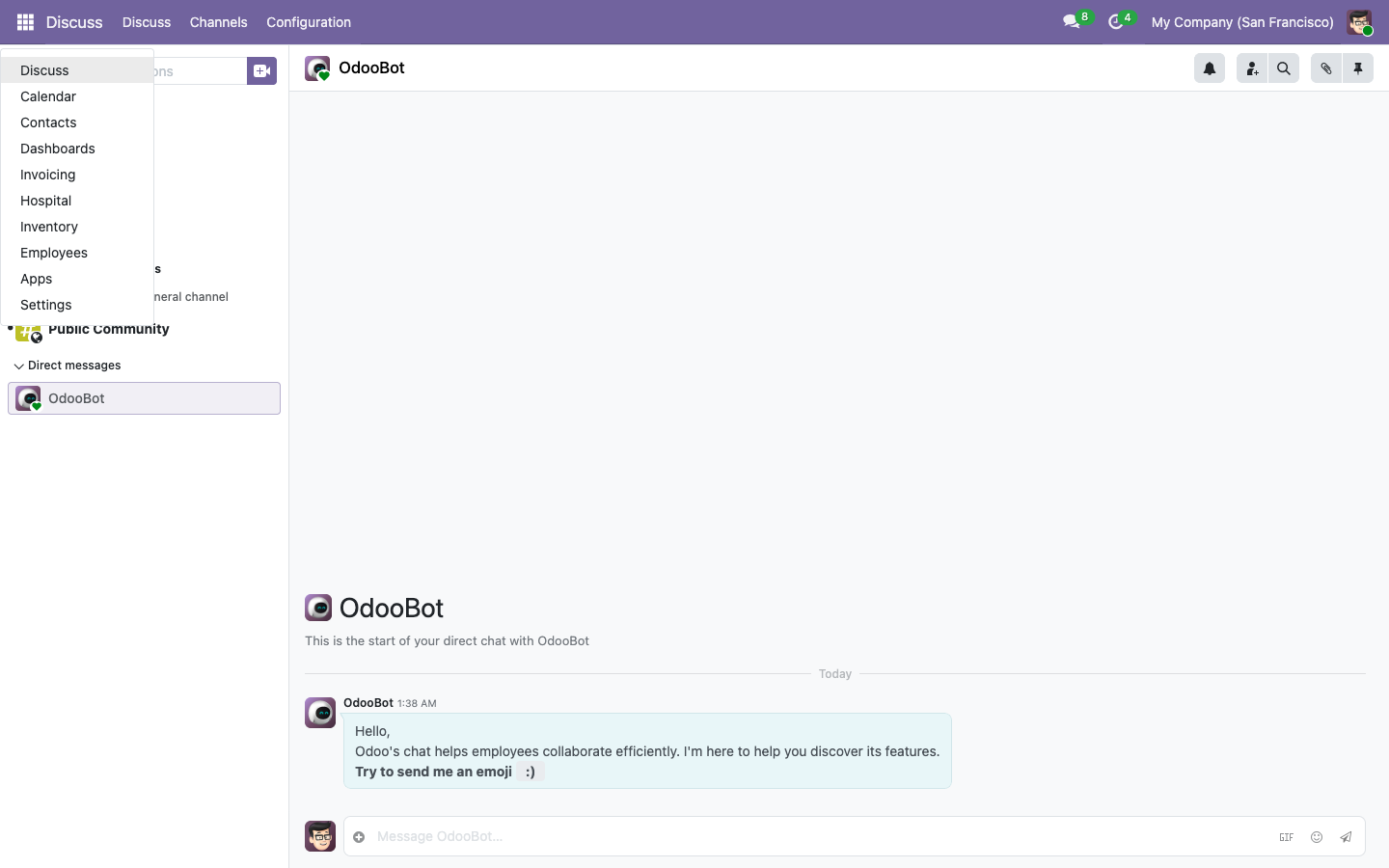
The Hospital module has these main menu items:
| Menu | Description |
|---|---|
| Patients | Patient registry — all contacts flagged as patients |
| Appointments | Medical appointment scheduling (calendar-based) |
| Consultations | EMR — clinical encounters with vitals and prescriptions |
| Lab Requests | Laboratory test orders, results, and validation |
| Admissions | Inpatient ward/bed management |
| Insurance Policies | Patient insurance coverage and co-pay rules |
| Configuration | Specializations, appointment types, lab test types, wards, beds, medicines |
¶ Hospital Website
The HMS includes a public-facing hospital website accessible to anyone without logging in.
¶ Home Page
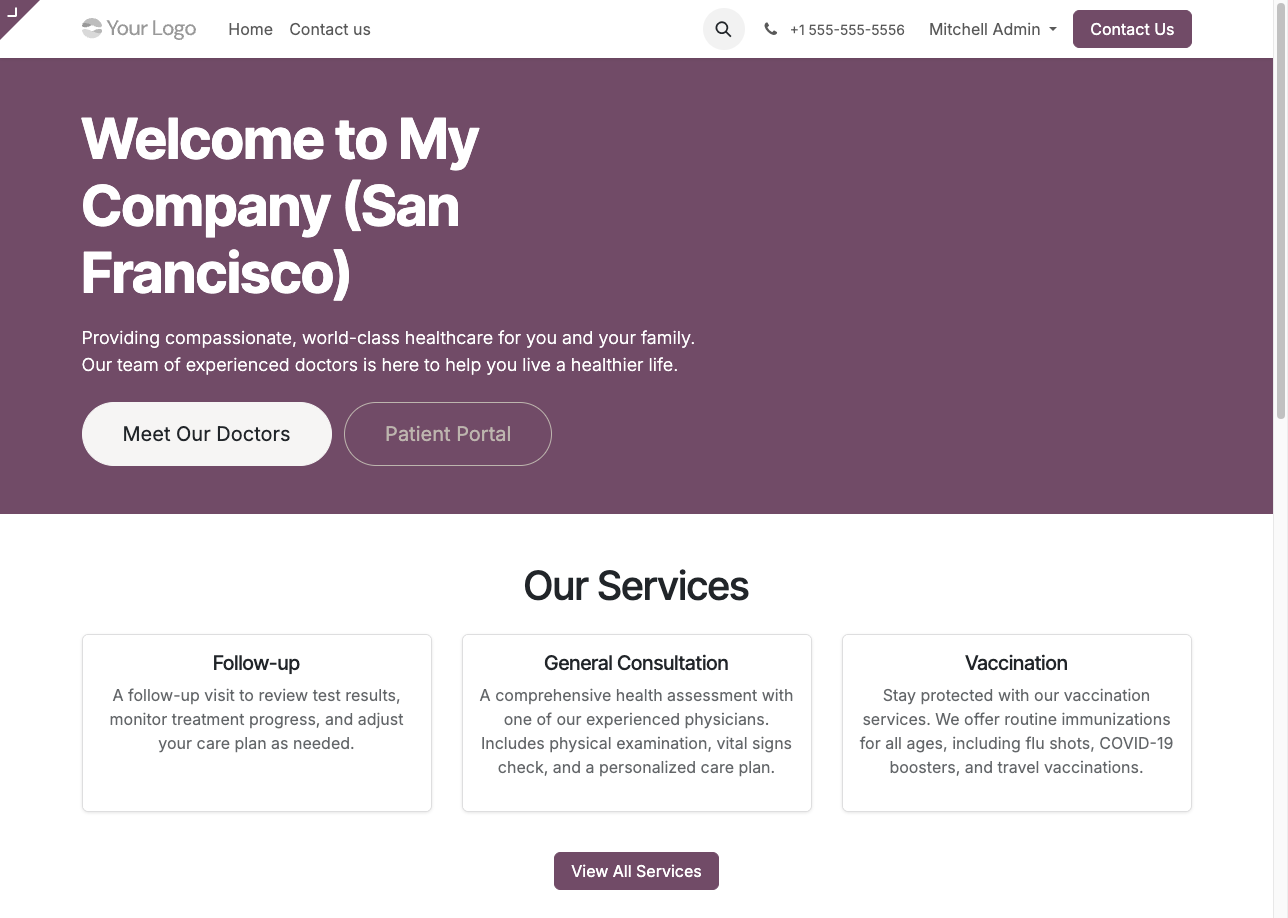
Visit the root URL (e.g. http://localhost:8069/) to see the hospital home page with a hero section, services overview, doctor highlights, and call-to-action buttons.
¶ Our Doctors
The /hospital/doctors page displays all doctors who have been marked as Published on Website in the backend. Each card shows the doctor's photo, specialization, job title, and biography.
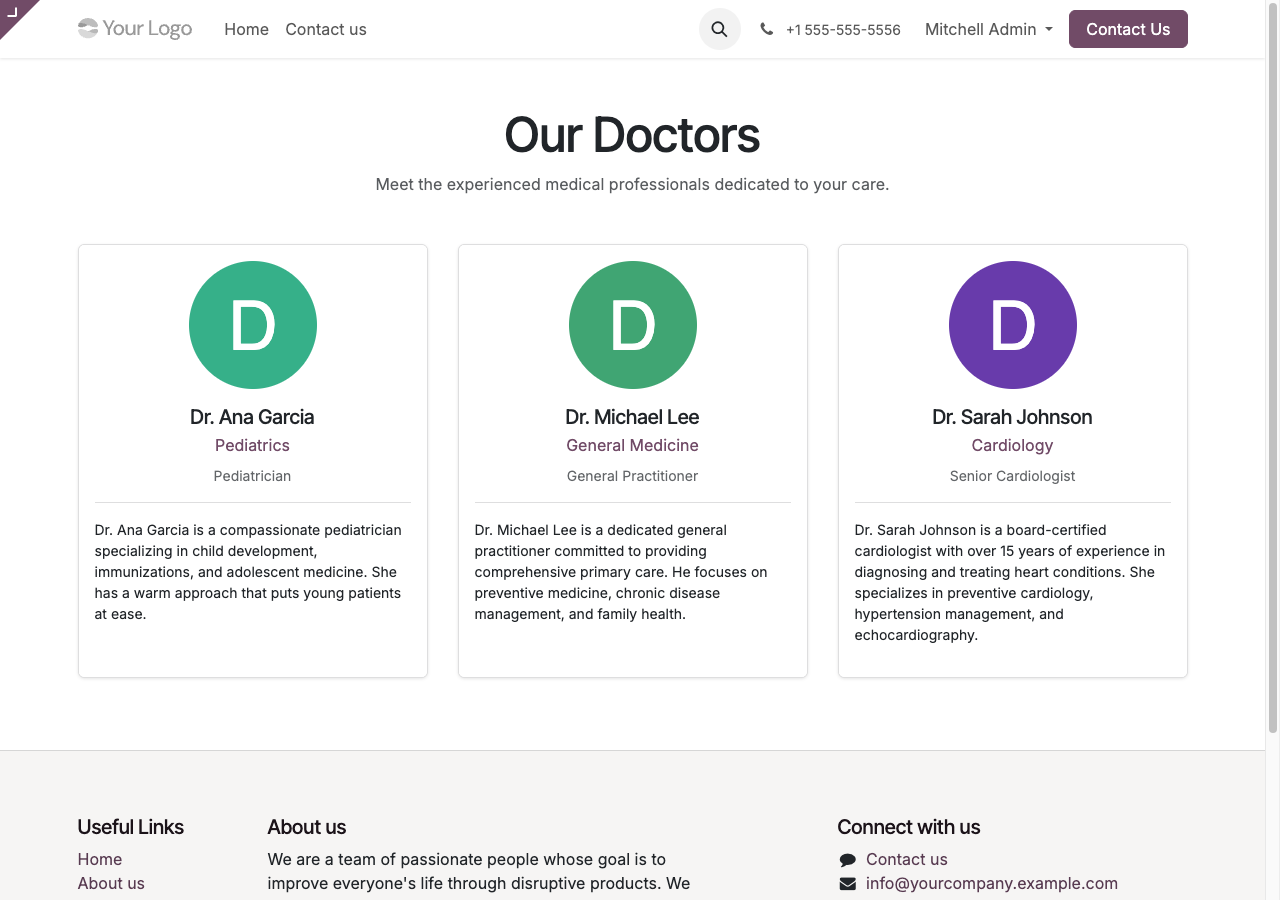
To publish a doctor: open their employee record in the backend, go to the form, and check Published on Website. Add a Website Bio (HTML) for their public profile.
¶ Services
The /hospital/services page lists all appointment types marked as published, with descriptions and duration.
¶ Contact
The /hospital/contact page shows the hospital's address, phone, email (from the company record), and operating hours.
¶ Patient Registration
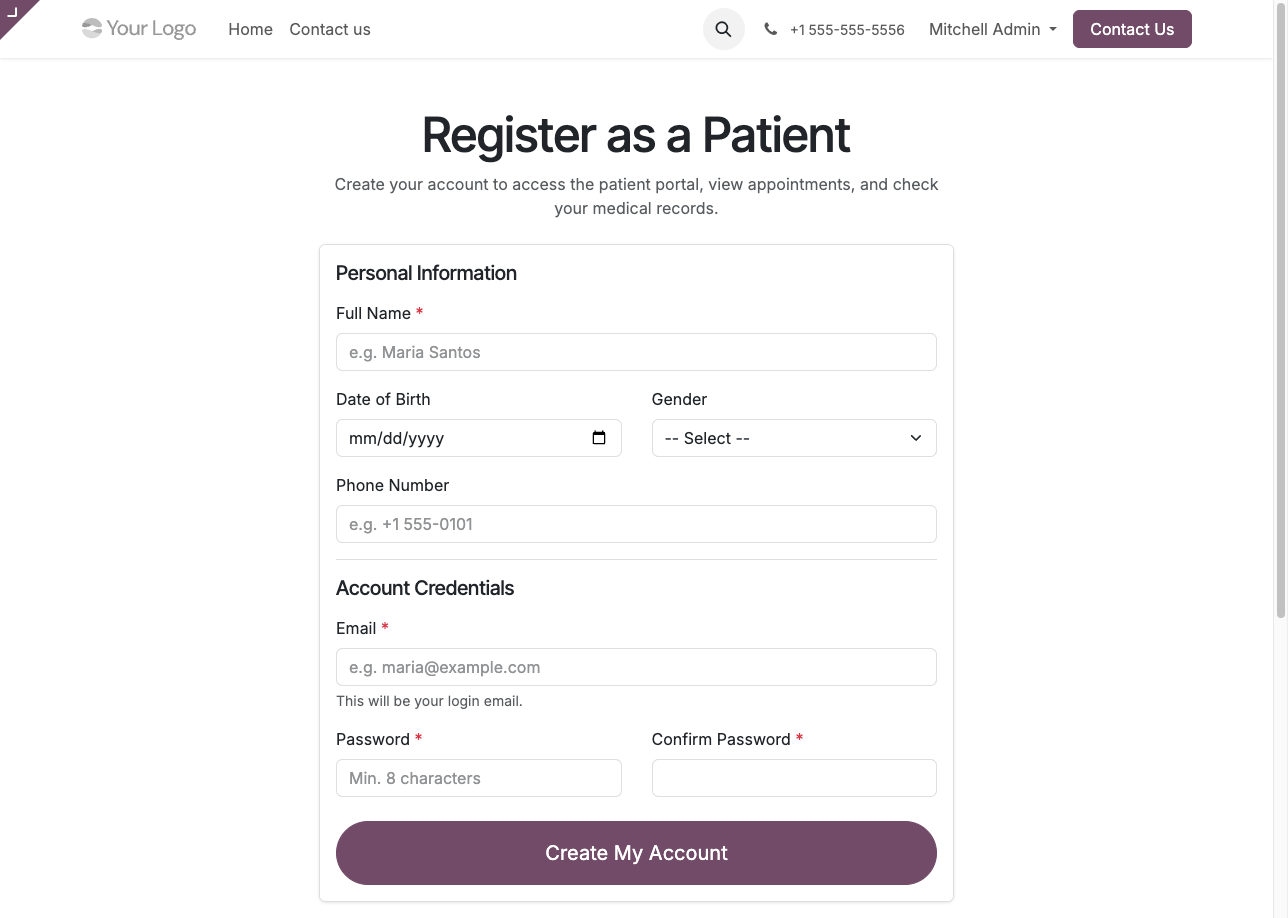
Patients can create their own portal account via the self-registration form at /hospital/register. This is accessible from the "Register as Patient" button on the home page or directly via the URL.
¶ How It Works
- Patient visits
/hospital/register. - Fills in the form:
- Full Name (required)
- Date of Birth (optional)
- Gender (optional)
- Phone Number (optional)
- Email (required — becomes the login)
- Password + Confirm Password (required, min. 8 characters)
- Clicks Create My Account.
- The system creates:
- A
res.partnerrecord flagged asis_patient = Truewith the provided demographics. - A portal user linked to that partner with the given email and password.
- A
- A success message appears with a link to the Patient Portal.
- The patient can now log in at
/mywith their email and password.
¶ Validation
- Name, email, and password are required.
- Passwords must match and be at least 8 characters.
- Duplicate emails are rejected (if an account already exists).
- On any error, the form re-displays with the error message and the previously entered values preserved.
¶ For Administrators
Patients who register via this form automatically appear in Hospital → Patients with their demographics pre-filled. No manual setup is needed — the patient is ready for appointments and consultations immediately.
If you prefer to disable self-registration and create patient accounts manually, you can remove the /hospital/register menu link via the Odoo Website Builder.
¶ Patient Management
¶ Patient List
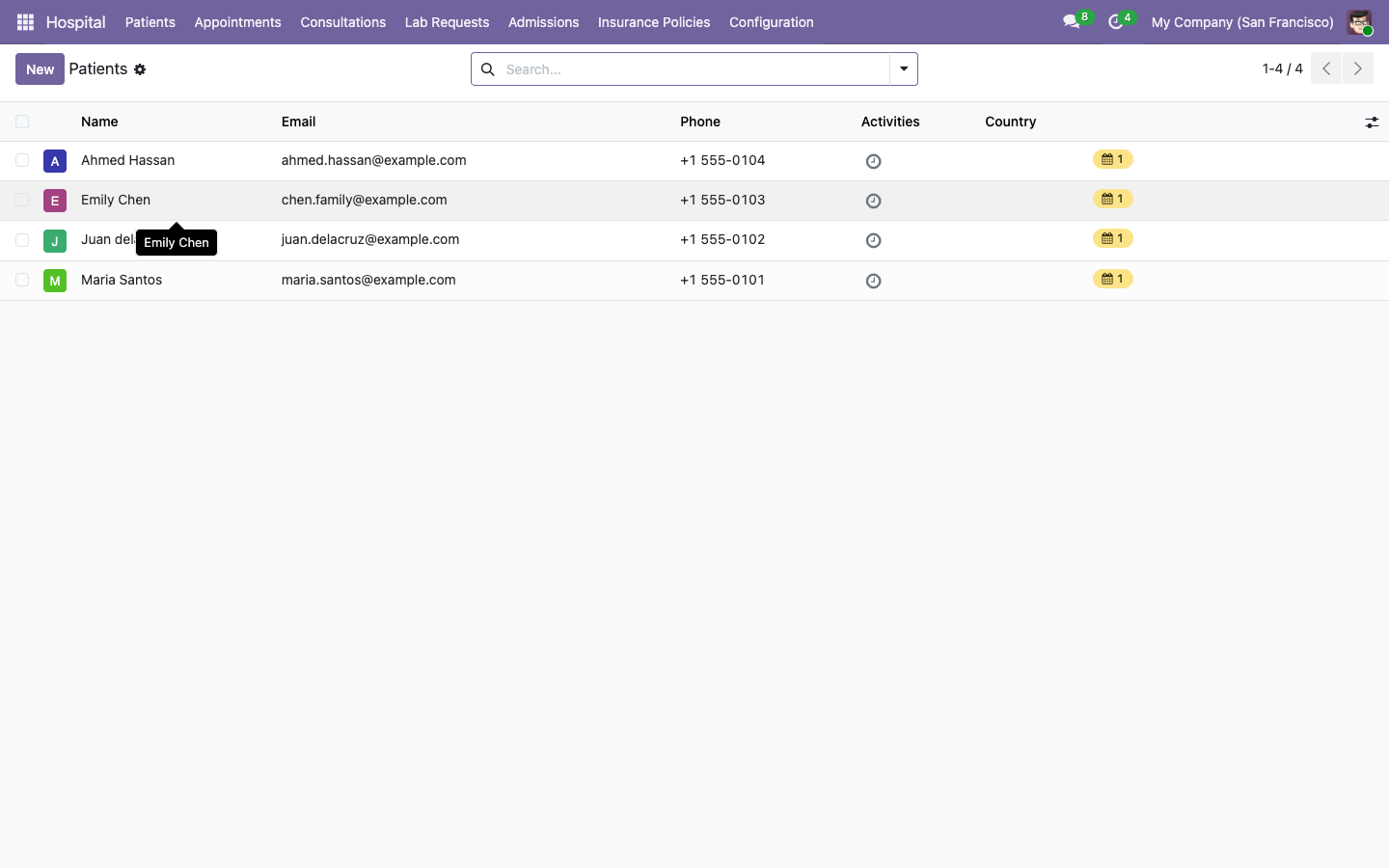
The Patients view shows all contacts flagged as patients. You can search, filter, and create new patients from here.
¶ Patient Form
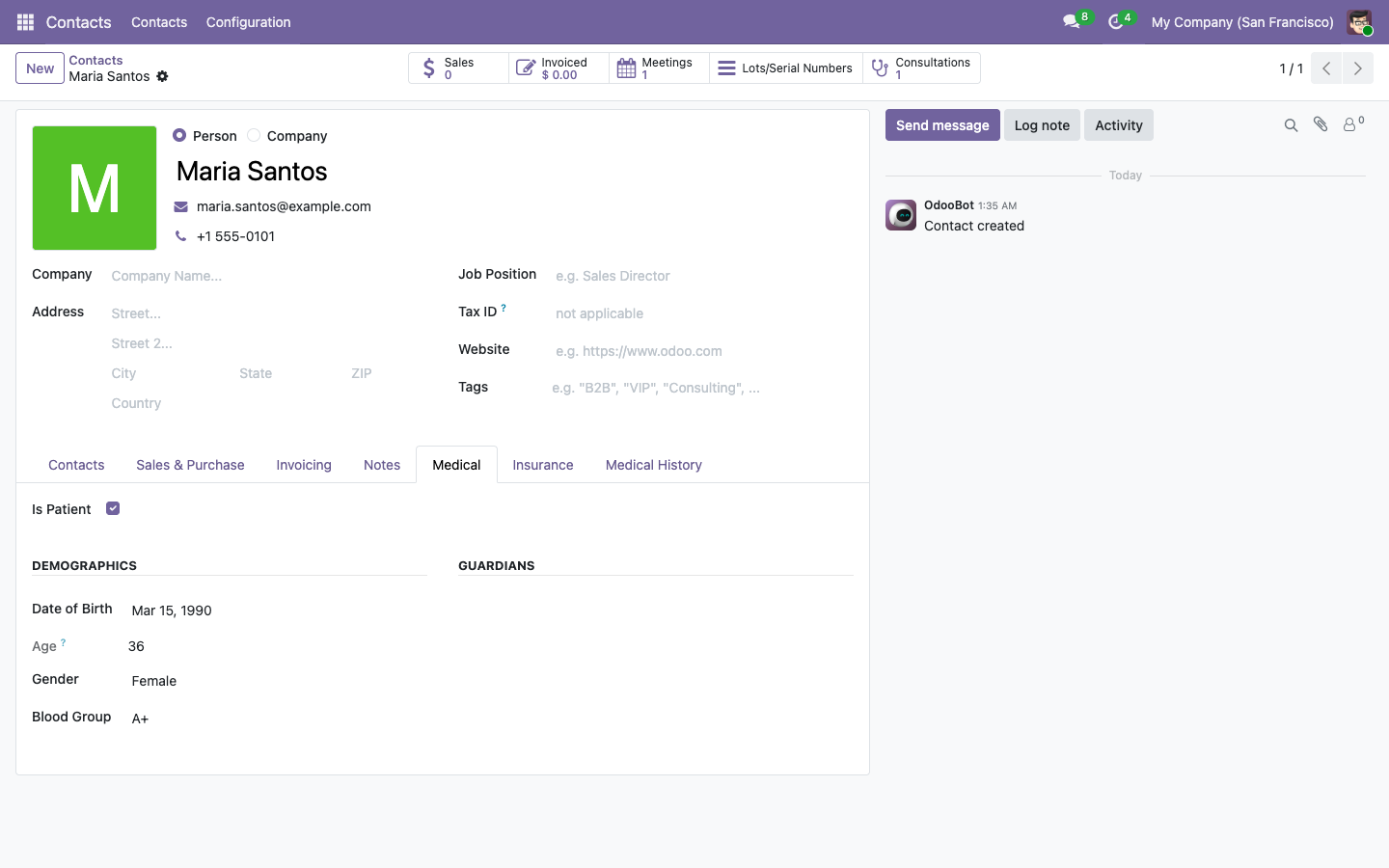
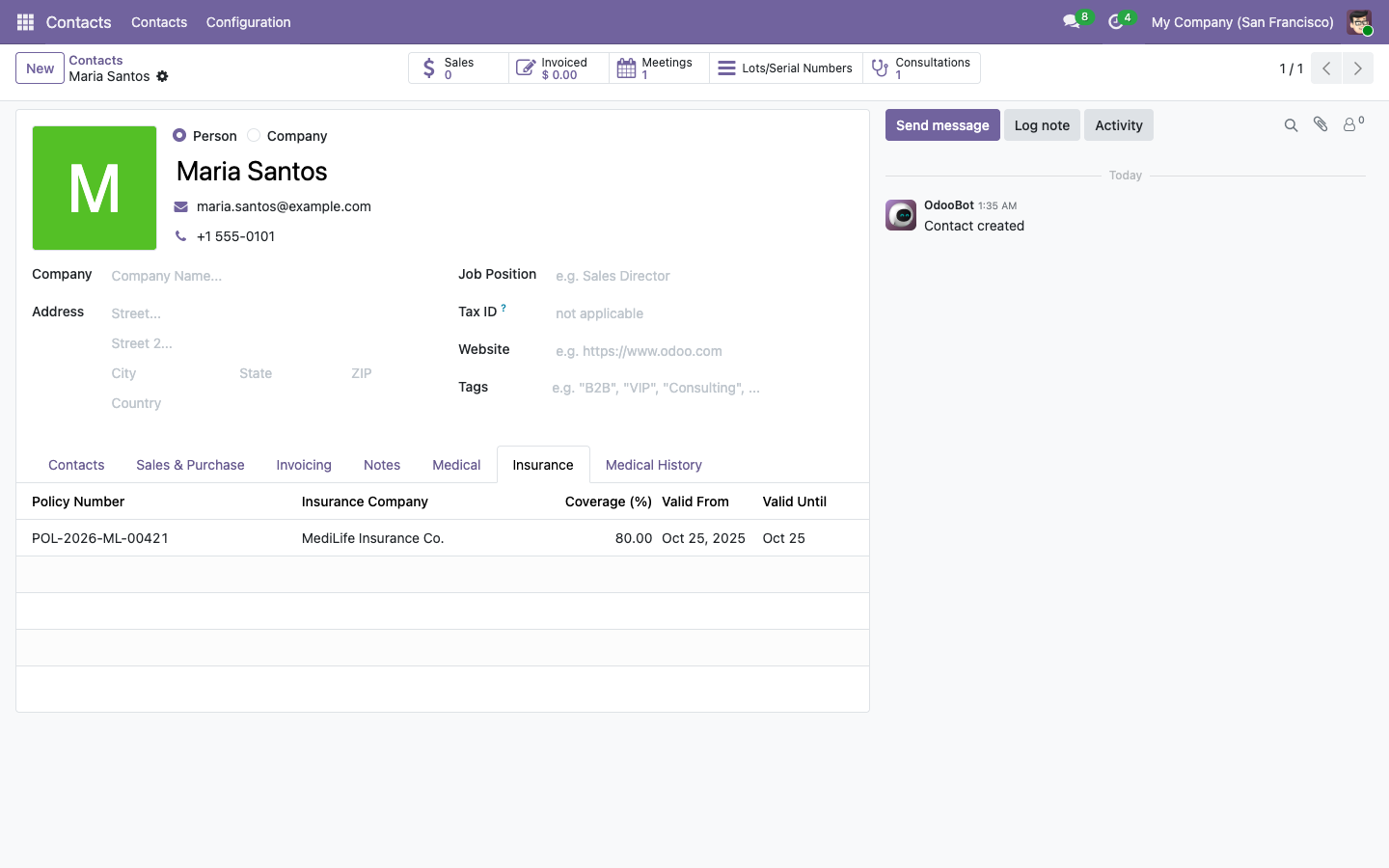
Open a patient record to see their full profile. The form includes several tabs:
Medical Tab — Demographics (date of birth, age, gender, blood group) and guardian links.
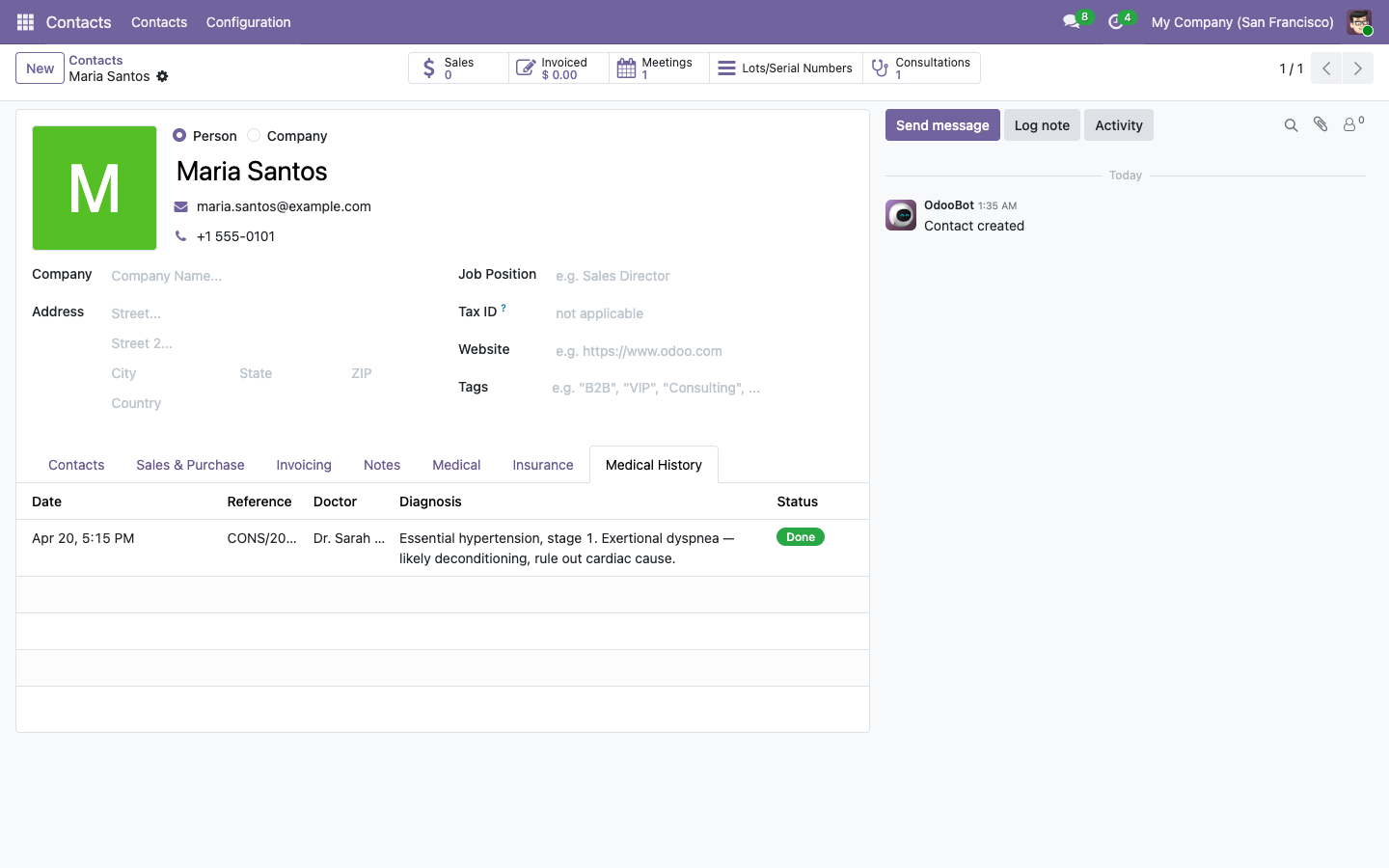
Medical History Tab — A read-only timeline of all consultations for this patient, showing date, doctor, diagnosis, and status.
Insurance Tab — Insurance policies linked to this patient, including coverage percentage and validity dates.
¶ Smart Buttons
At the top of the patient form, smart buttons show quick counts:
- Consultations — number of clinical encounters
- Meetings — linked calendar events
¶ Appointments
¶ Appointment List
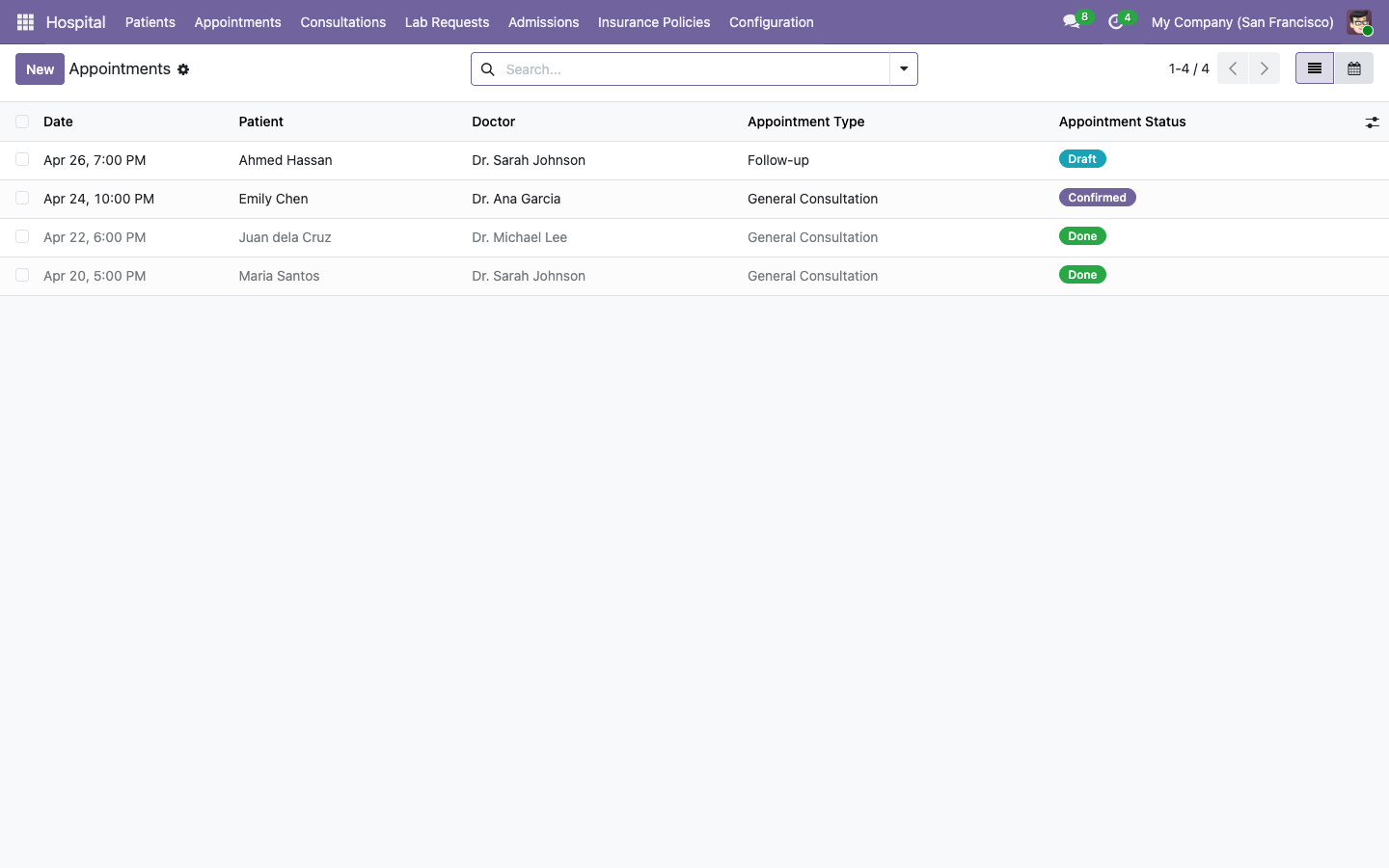
The Appointments view shows all medical appointments with date, patient, doctor, type, and status badges.
¶ Appointment States
Appointments follow a 5-state workflow:
- Draft — newly created, not yet confirmed
- Confirmed — patient and doctor confirmed
- Checked In — patient has arrived
- Done — appointment completed
- Cancelled — appointment was cancelled
Each state has action buttons in the form header. The appointment form also includes a calendar view for visual scheduling.
¶ Creating an Appointment
- Click New from the Appointments list.
- Select the Patient and Doctor.
- Choose an Appointment Type (this pre-fills the default duration).
- Set the date and time.
- Click Confirm to move from Draft to Confirmed.
¶ Consultations (EMR)
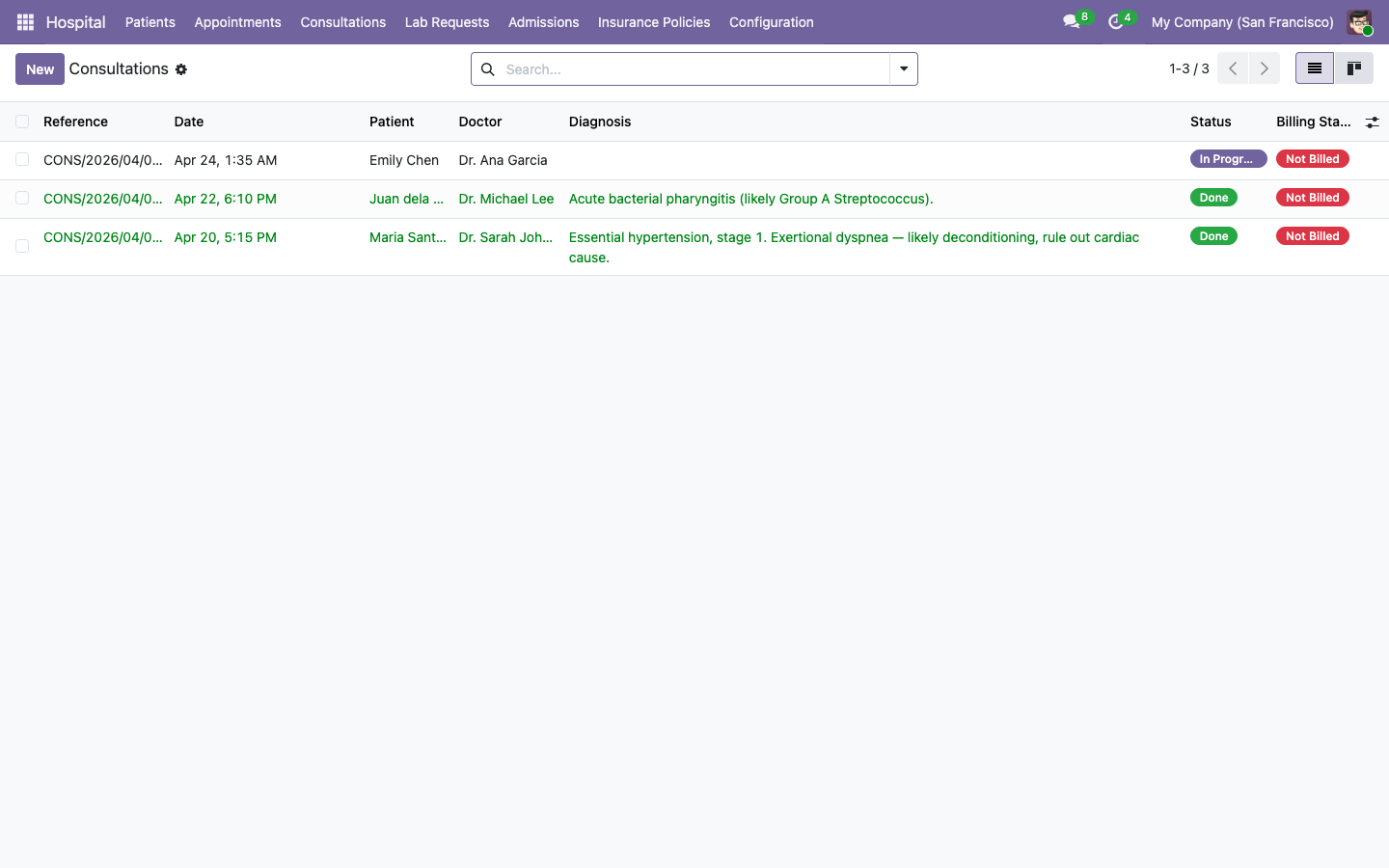
Consultations are the clinical core of the system. They record the encounter between a doctor and patient.
¶ Consultation List
¶ Consultation Form
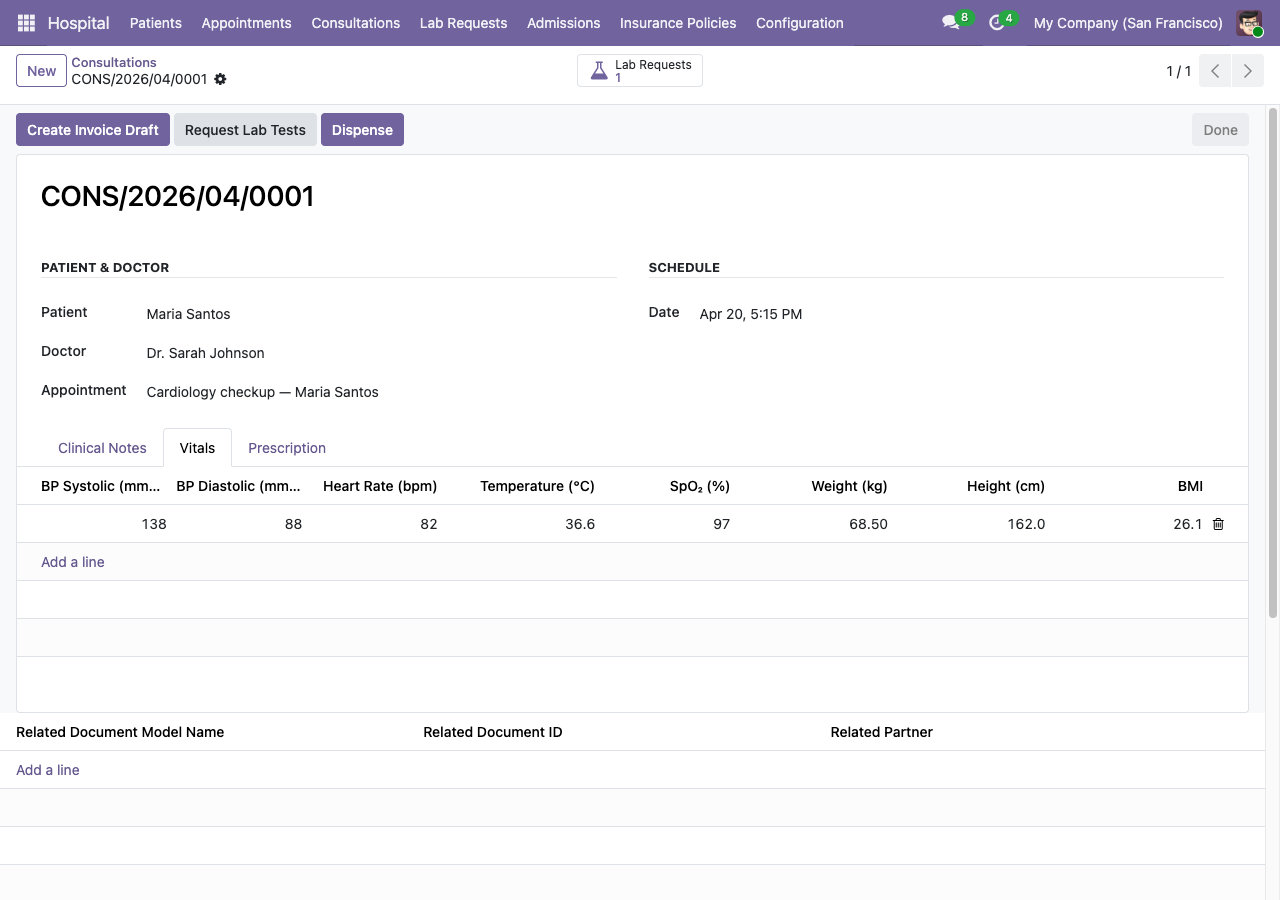
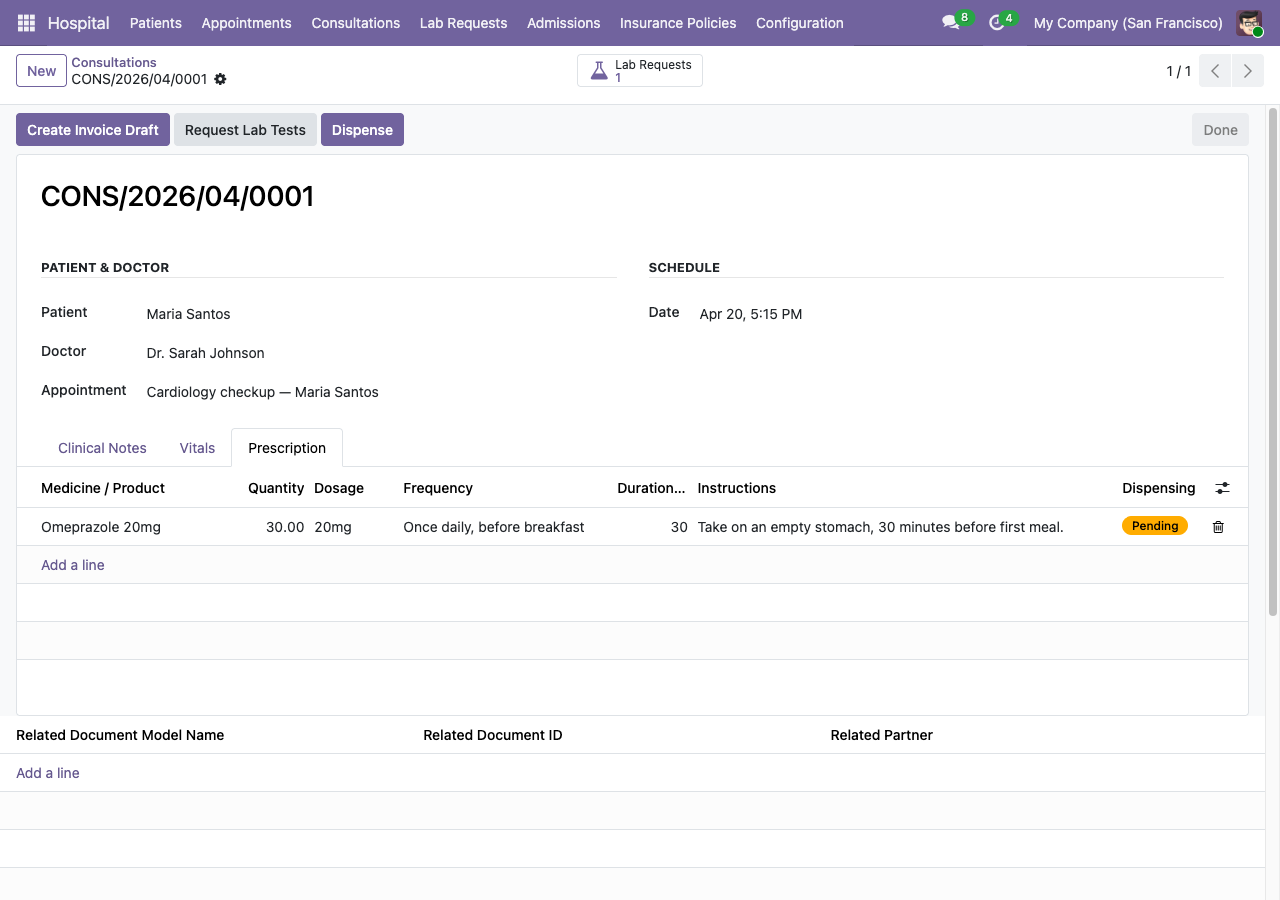
The consultation form has a status bar (Draft → In Progress → Done), action buttons, and three main tabs:
Clinical Notes — Chief complaint, history, examination, diagnosis, and treatment plan.
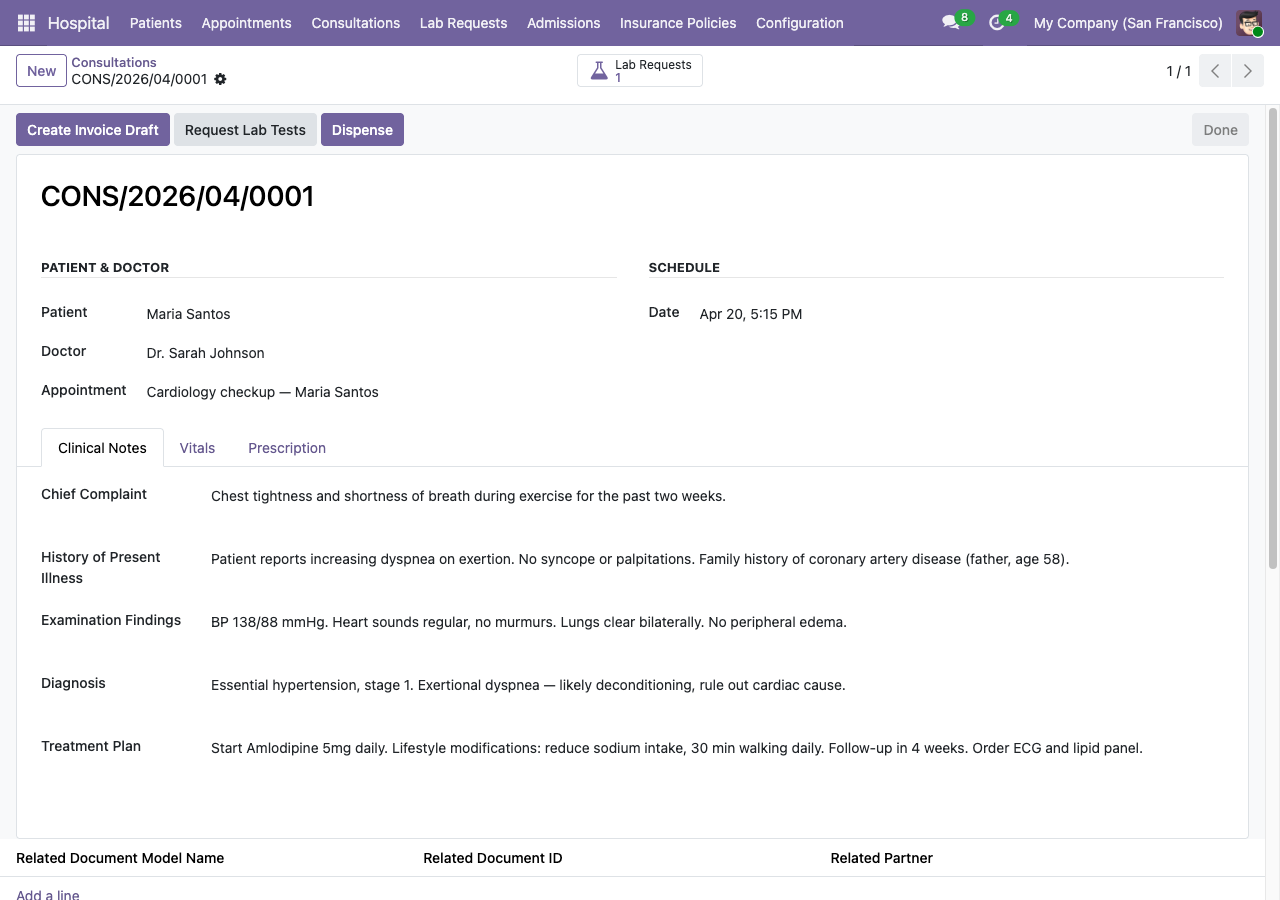
Vitals — Vital signs recorded during the visit: blood pressure, heart rate, temperature, SpO₂, weight, height, and computed BMI.
Prescription — Medications prescribed, with quantity, dosage, frequency, duration, and instructions. The Dispensing badge shows whether each line has been dispensed by the pharmacy.
¶ Consultation Workflow
- Doctor clicks Start to move from Draft to In Progress.
- Records clinical notes, vitals, and prescription.
- Clicks Complete when finished → status becomes Done.
- From the Done state, additional actions become available:
- Create Invoice Draft — generates a sale order for billing
- Request Lab Tests — creates a lab request pre-filled from this consultation
- Dispense — creates a stock picking for prescribed medicines
¶ Lab Requests & Results
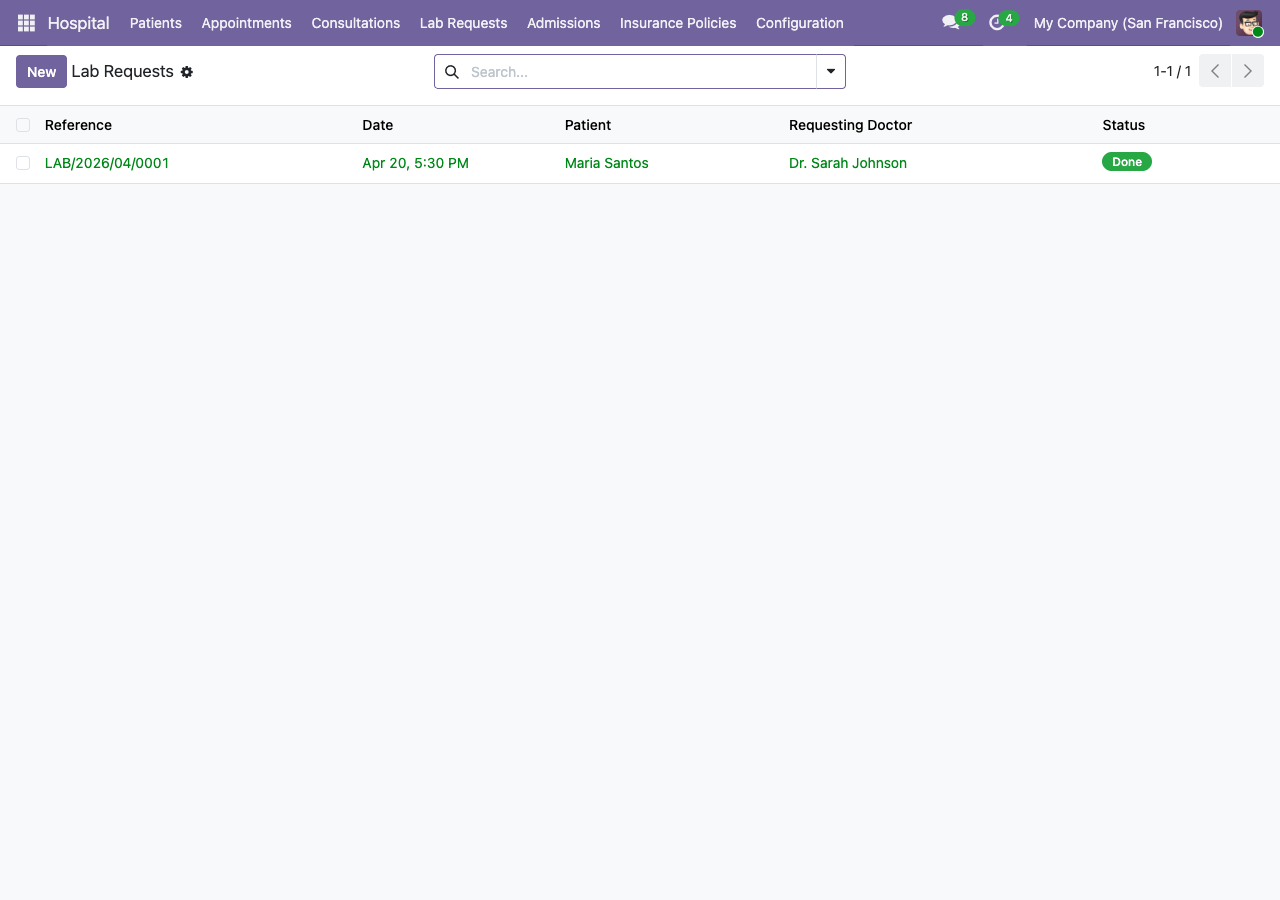
¶ Lab Request List
¶ Lab Request Form
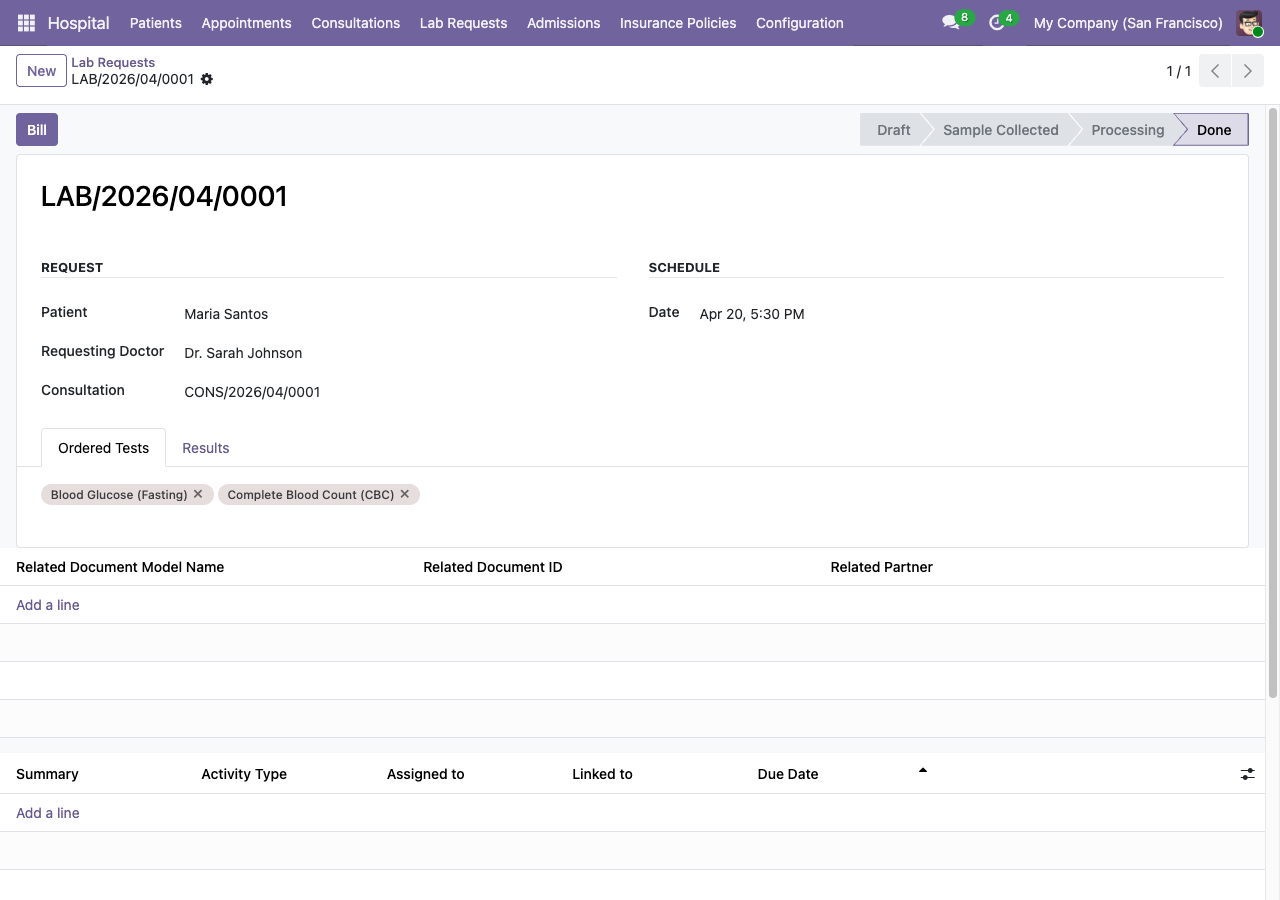
A lab request links a patient, doctor, and one or more tests. Tests can be individual (e.g. Blood Glucose) or panels (e.g. CBC — which auto-expands into WBC, RBC, Platelets, Hematocrit).
¶ Lab Results
The Results tab shows each test's value, unit, normal range, and an Abnormal toggle that automatically flags values outside the normal range.
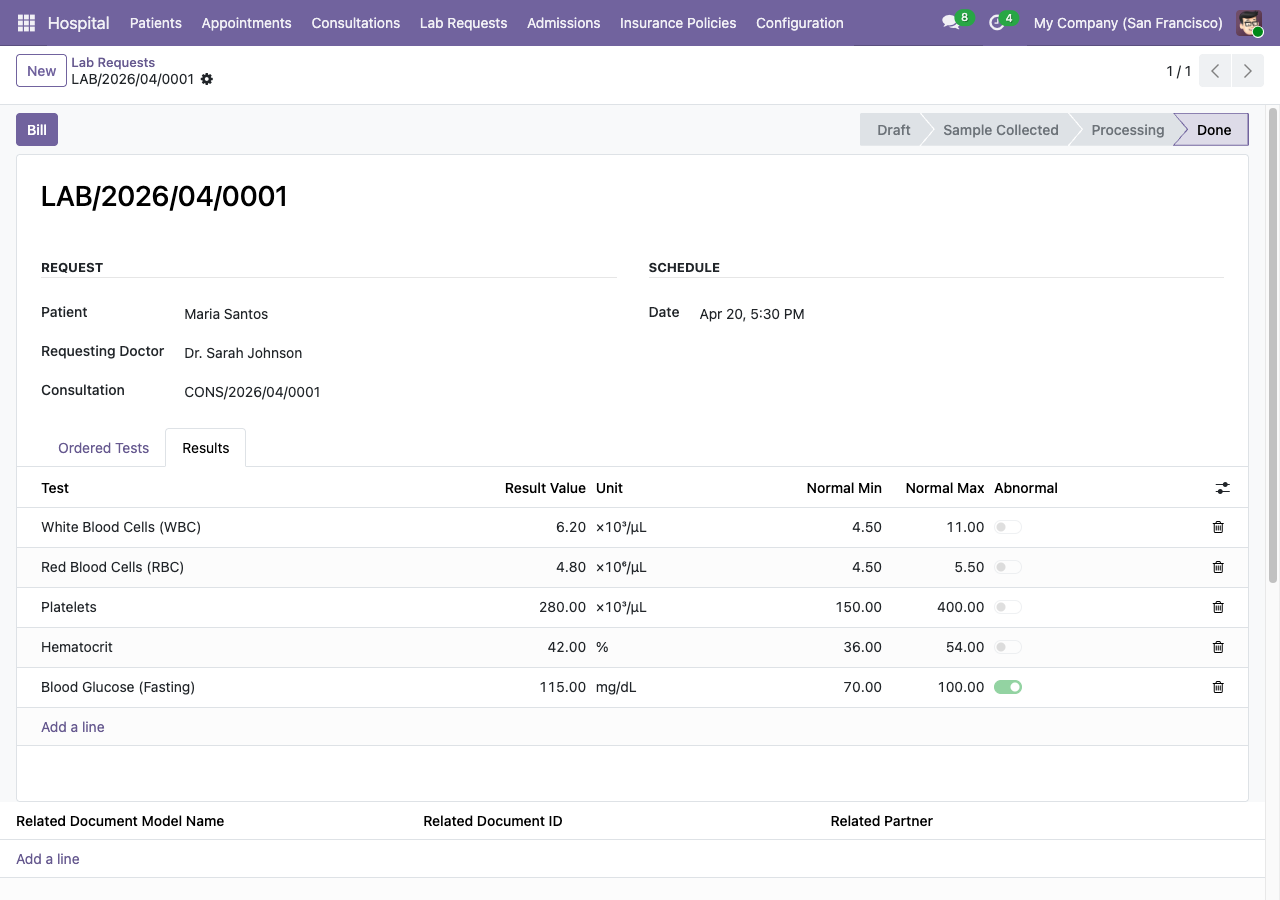
In this example, Blood Glucose (Fasting) is 115 mg/dL — above the normal range of 70–100 — so it's flagged as abnormal.
¶ Lab Request Workflow
- Doctor creates the request (from a consultation or standalone).
- Selects test types (panels auto-expand).
- Clicks Generate Result Lines.
- Lab technician clicks Sample Collected → Start Processing.
- Technician enters result values.
- Supervisor clicks Validate Results → status becomes Done.
- Optionally click Bill to add test fees to a sale order.
¶ Pharmacy & Dispensing
The pharmacy module turns prescriptions into stock operations.
¶ How Dispensing Works
- On a completed consultation, click the Dispense button.
- This creates a stock picking (outgoing delivery) from the Pharmacy location.
- The pharmacist reviews and validates the picking.
- On validation, each prescription line's Dispensing badge changes from "Pending" to "Dispensed".
The Pharmacy location uses FEFO (First Expiry, First Out) removal strategy — Odoo automatically picks the lot with the nearest expiry date.
¶ Medicines Configuration
Under Hospital → Configuration → Medicines, manage products flagged as medicines. Medicines should be created as storable products with lot tracking enabled for expiry management.
¶ Billing
¶ Direct-Pay Billing
On a completed consultation, click Create Invoice Draft to generate a draft sale order:
- The sale order is created for the patient.
- One line per service product (consultation fee from the appointment type).
- A Billed ribbon appears on the consultation to prevent double-billing.
¶ Insurance Co-Pay
If the patient has an active insurance policy, the system automatically adds a negative "Insurance Discount" line to the sale order:
- Sale order total = full consultation fee
- Insurance Discount = -(fee × coverage percentage)
- Patient pays = co-pay only
¶ Billing Flow
- Consultation → Create Invoice Draft → Draft Sale Order
- Confirm the Sale Order (standard Odoo flow)
- Create Invoice from the confirmed SO
- Post and send the invoice
Lab tests and dispensed medicines are also automatically added to the sale order when the billing bridge modules are installed.
¶ Inpatient & Admissions
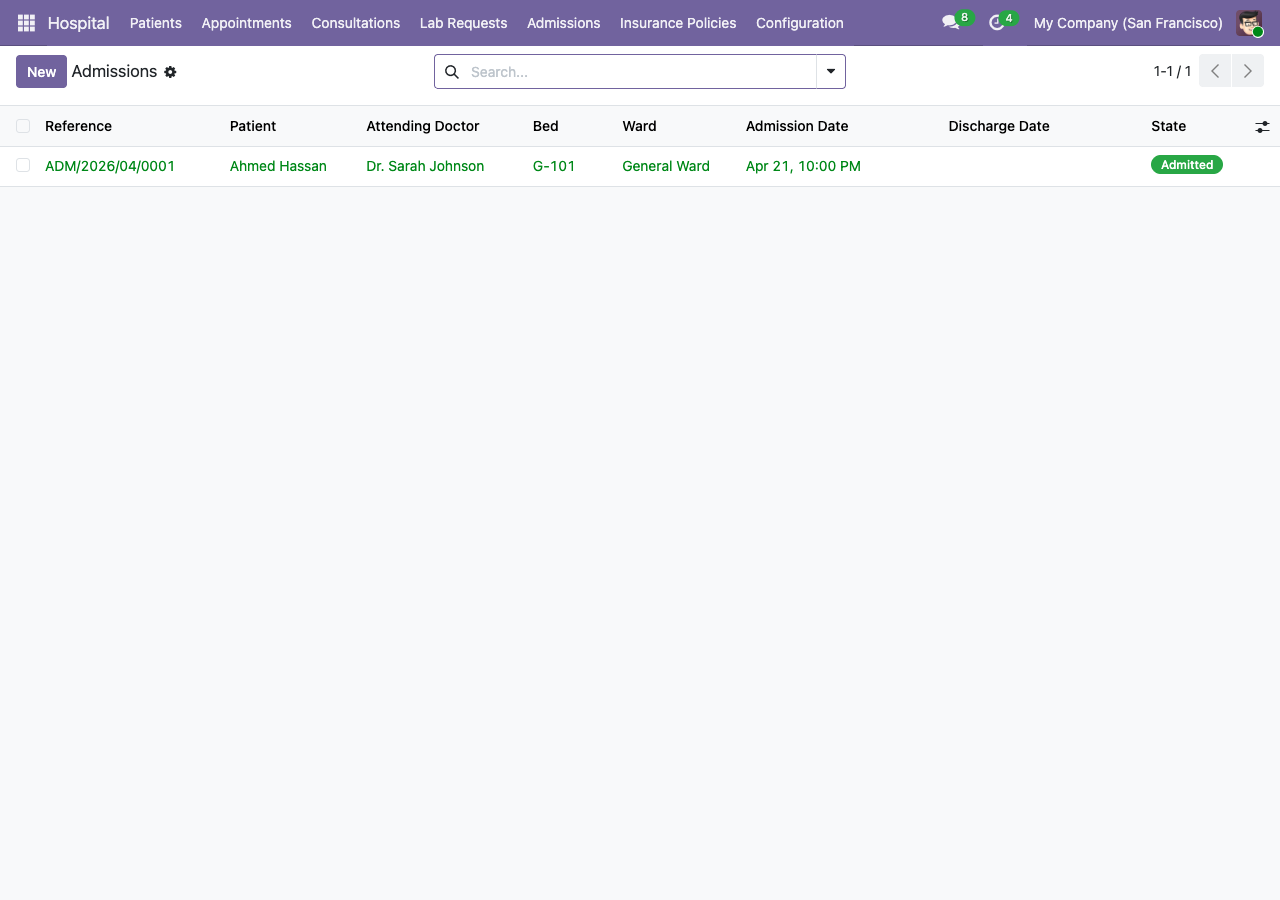
¶ Admissions List
¶ Admission Workflow
- Click New to create an admission. Select patient, doctor, and an available bed.
- Click Admit — the bed state changes to "Occupied" and a draft sale order is created for room charges.
- A daily CRON job adds one room-charge line per day to the sale order (based on the bed's room charge product).
- Click Discharge — the bed state changes to "Cleaning" and the admission is finalized.
¶ Safety Checks
- Bed availability — cannot admit to an occupied bed.
- Gender restriction — wards can be restricted to male-only or female-only; the system blocks mismatches.
- CRON idempotency — room charges are only added once per day, even if the CRON runs multiple times.
¶ Ward & Bed Configuration
Under Hospital → Configuration → Wards and Beds, manage the physical layout. Each bed has:
- A type (Standard, Semi-Private, Private, ICU)
- A state (Available, Occupied, Cleaning, Maintenance)
- A room charge product (service product billed daily)
¶ Insurance Policies
¶ Managing Policies
- First, create an insurance company: go to Contacts, create a company, and check Is Insurance Company in the Insurance Settings tab.
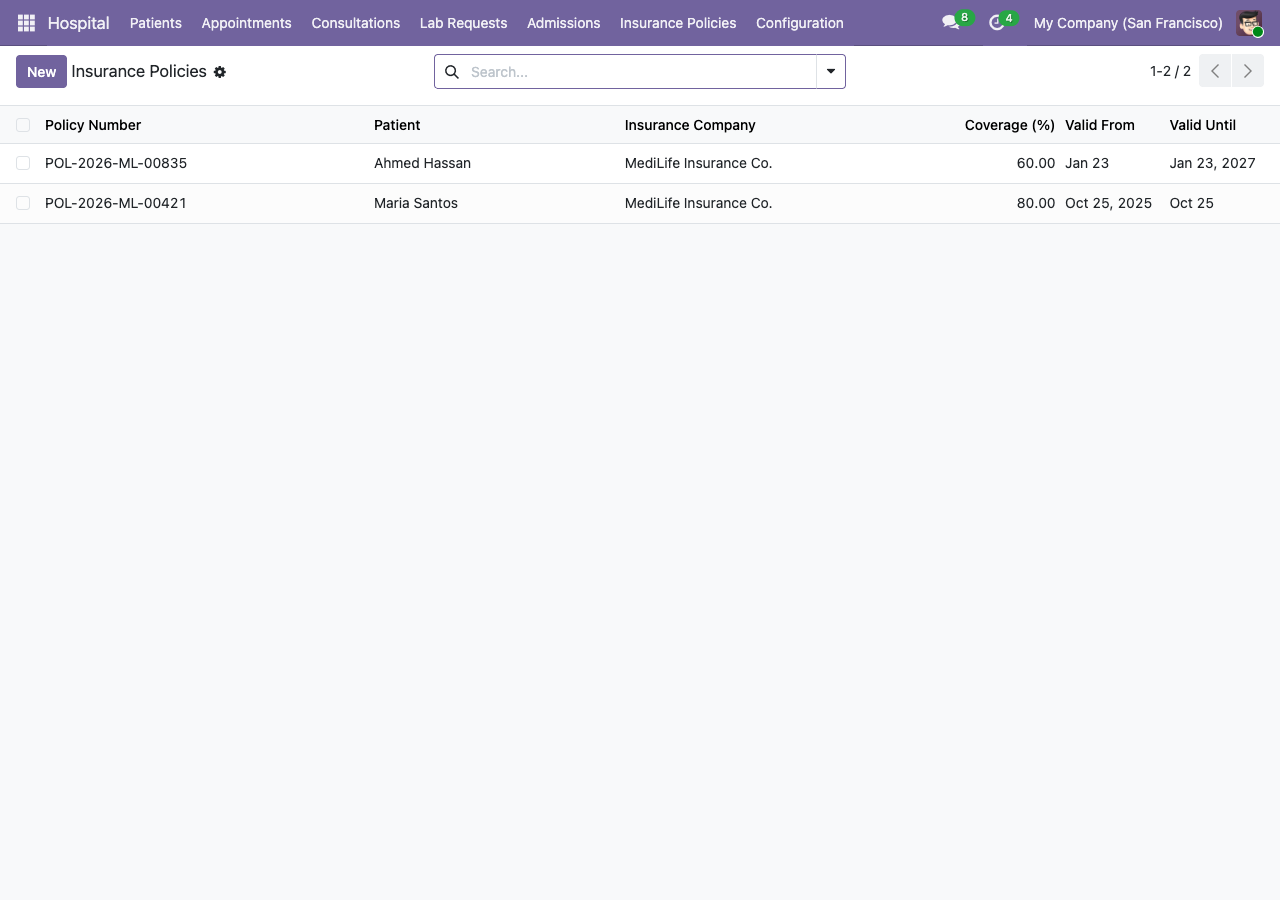
- Go to Hospital → Insurance Policies and create a policy linking a patient to the insurer.
- Set the coverage percentage (e.g. 80%) and validity dates.
- When billing, the system auto-detects the active policy and applies the discount.
¶ Patient Portal
Patients can log in at /my to view their medical records. The portal is view-only — patients cannot create or modify records.
¶ What Patients See
- My Appointments — list of all their medical appointments with date, doctor, type, and status.
- My Consultations — list of consultations with reference, diagnosis, vitals, and prescriptions.
- Invoices — if
hms_billingis installed, patients can also see their invoices (via Odoo's built-in account portal).
¶ Getting Portal Access
Self-registration (recommended): Patients register themselves at /hospital/register — see Patient Registration above. No admin action needed.
Manual setup (admin): If a patient was created in the backend without a portal account:
- Go to Settings → Users.
- Create a user linked to the patient's
res.partnerrecord. - Assign Portal access rights.
- Share the login credentials with the patient.
¶ Configuration
Under Hospital → Configuration, manage master data:
| Item | Description |
|---|---|
| Specializations | Medical specialties (Cardiology, Pediatrics, etc.) assigned to doctors |
| Appointment Types | Pre-defined appointment types with default duration and billing product |
| Lab Test Types | Individual tests and panels with normal ranges and units |
| Wards | Hospital wards with floor, gender restriction, and bed list |
| Beds | Individual beds with type, state, and room charge product |
| Medicines | Products flagged as medicines for the pharmacy module |